Plane Crash Physics Controls
Map throttle, pitch, and camera so every climb and intentional wreck stays readable.
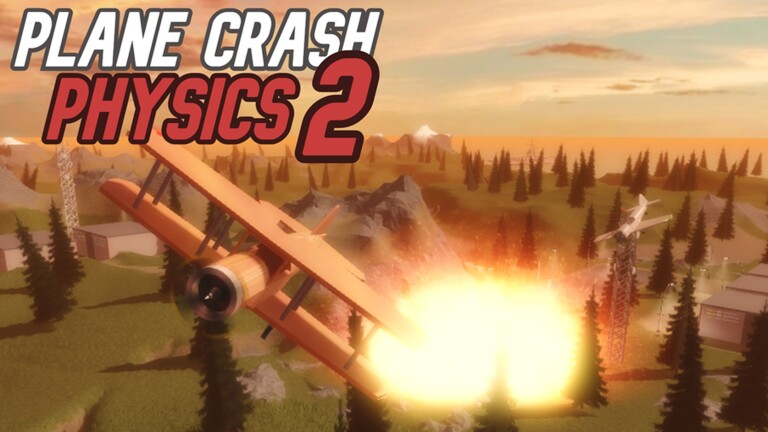
Clean crashes start with clean inputs. Plane Crash Physics on Roblox uses familiar flight-sim instincts—throttle for power, pitch and roll for attitude, camera for framing—but each device hides those actions in slightly different UI. This guide covers practical layouts for PC, mobile, and console so you can focus on How to Fly and How to Crash instead of fighting the HUD.
Shared control ideas
Across the original place, Physics 2, and Physics X you will always need:
- Throttle / power to climb or starve an engine before impact.
- Pitch to raise or lower the nose for takeoff, dive, or stall.
- Roll / yaw (when available) to line up a runway, hillside, or water landing.
- Camera orbit or shift so you can see wing snaps instead of a locked cockpit blur.
- Respawn / menu to pick another airframe from the Aircraft Roster after a wreck.
Exact key names can shift after studio updates. If a binding feels wrong after a patch, re-open the in-game settings panel and check Updates.
PC controls
PC is the best platform for cinematic wrecks.
Typical patterns players use:
- Keyboard throttle on W/S or a dedicated power key, with mouse look for camera.
- Pitch and roll on mouse movement or arrow/WASD hybrids depending on the place’s flight script.
- Number keys or a spawn GUI for switching planes quickly.
Recommended PC habits:
- Bind throttle to something you can feather—avoid slamming full power during learning flights.
- Keep the mouse free for camera when you commit to a dive; framing the breakup matters as much as the impact point.
- Use a higher field of view only if it does not hide wing tips; you want to see engines tear off.
- Fullscreen plus a stable frame rate helps when Physics X loads denser airport maps.
If you film content, practice a wide chase-cam pass after impact before respawning. The Best Crash Planes list calls out airframes that read well on PC cameras.
Mobile controls
Mobile joins are fully supported on Roblox, but thumbs fight the HUD.
Tips that keep sessions playable:
- Sit the device in landscape so the throttle slider and pitch stick do not overlap.
- Reduce UI clutter in Roblox settings if on-screen buttons cover the horizon.
- Prefer slower airliners from the Tier List while learning—high-thrust fighters punish fat-finger inputs.
- Tap camera drag carefully during the final dive; accidental roll inputs turn a planned belly landing into an unreadable tumble.
When the touch layout feels hostile, switch to PC for practice, then return to mobile for casual chaos. The Getting Started guide still applies.
Console controls
Console players should map:
- Triggers to throttle (analog feathering beats a toggle).
- Right stick to camera when the place allows free look.
- Face buttons to menu / spawn / camera presets.
Disable vibration if it distracts during long approaches. On shared living-room screens, increase text size in Roblox accessibility settings so airport labels on Physics X stay readable—see the Physics X guide.
Camera and crash framing
Controls are not only for keeping the plane aloft. The fantasy is watching pieces separate.
- Before impact, pull the camera wide enough to see both wings.
- After impact, orbit once around the fuselage before respawning.
- On water crashes, watch for sinking debris; on land, watch for skidding engines.
Pair these habits with techniques on How to Crash. If a community Plane Spawner unlocks locked ships, you still need the same camera discipline.
Troubleshooting sticky inputs
- Plane will not climb: check throttle, flaps if present, and whether you spawned inside geometry.
- Instant spin on takeoff: reduce power, center roll, and pick a gentler airframe from the Aircraft Hub.
- Cannot find codes UI: codes are uncommon; when a drop exists, follow How to Redeem.
- Bindings reset after update: re-check settings and skim Series History for sequel-specific UI notes.
Master the inputs once, then spend your sessions on route choice, airframe choice, and spectacular, readable wrecks.
Frequently Asked Questions
Quick answers for pilots, crash testers, and new players.
Do controls differ between the original, Physics 2, and Physics X?
The core throttle and pitch ideas stay similar, but menus, spawn GUIs, and camera helpers can differ. Re-check settings when you switch places.
What is the best platform for Plane Crash Physics?
PC offers the best camera control for filming crashes. Mobile and console are fully playable with a careful layout.
Why does my plane spin on takeoff?
Usually excess power plus roll input. Feather throttle, center the stick, and try a slower airliner while learning.
Where do I change keybinds?
Use the in-game settings or Roblox escape menu bindings for the active place. Patches can reset custom layouts.
Do I need a script to play with normal controls?
No. Scripts only add community spawn tools. Standard flight works without them—see the Scripts Hub if you still want those extras.